Designing an accessible campus wayfinding system for MIT-WPU
An eight-week collaborative project combining physical signage and a mobile web experience so students, visitors and staff can find destinations across the MIT-WPU campus without asking for help.
Role
Team Lead · Product Designer
Duration
8 weeks
Team
7 designers + mentor
Focus
Research · product design · UI/UX · team collaboration
Walkthrough
A recording of the campus wayfinding prototype — physical boards, then home, map, search, a highlighted walk, and arrival.
Physical — The map board sequence — sketch to product — before the phone journey starts.
Design process
Empathize
Walk, survey, interviews
Define
Problem, map, journey
Ideate
Flows and sketches
Prototype
Build and test
Problem
New students and campus visitors struggle to find unfamiliar destinations because campus directions are inconsistent, hard to see and disconnected from any digital guide. People lose time, lose confidence, and end up depending on security or other students.
How might we
How might we help a first-time visitor reach an unfamiliar destination independently, confidently and accessibly?
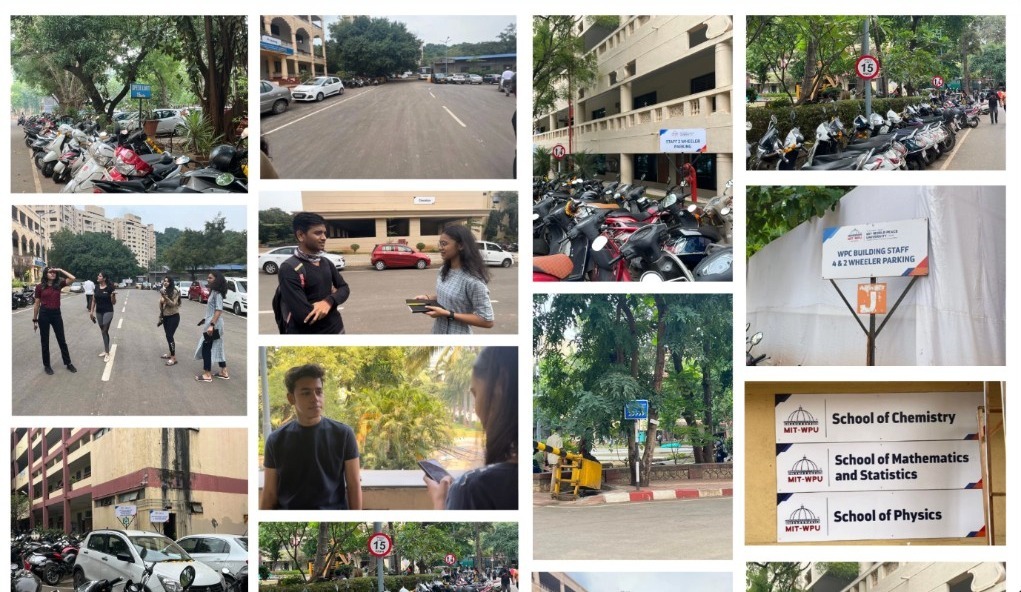
From the campus walk — signs that are hard to see, parking that blocks views, and people asking their way.
Primary research
We walked the campus, surveyed 30 people, and talked to new students and visitors about where they got lost and what they expected from signs — so the system would come from how people actually find their way.
Campus walk
Walked the campus and marked decision points, missing signs, blocked views and faded lettering.
Survey
Google Form with 30 campus users — students, visitors and staff — on finding destinations and noticing signs.
Interviews
Talked to new students and visitors about where they got lost, who they asked, and what they expected to see.
Survey findings
Survey of 30 campus users.
89.5%
Had trouble reaching a destination
57.9%
Had not noticed any campus signage
100%
Said the current system needed to change
0
Rated sign clarity 4 or 5 out of 5
Where should signs be placed?
College entrance84.2%
Crossroads84.2%
Common areas78.9%
Building entrances73.7%
Interviews
New people feel lost as soon as they enter the campus.
There is almost no relevant signage where people actually decide where to turn.
Lost visitors ask security guards — who become the default wayfinding system.
One building holds several departments, with nothing written at the door.
Departments move every year, so static names go stale.
Campus walk — pain points
Signs are hard to see from a distance.
Trees and other objects block some signs.
Signs are missing at important junctions.
No consistent visual system across the campus.
Weather has faded lettering and reduced contrast.
Building entrances are not identified clearly.
User journey
Arrive
Happy
Experience
The visitor enters the campus and likes it.
Expectations
MIT WPU has a beautiful campus.
Enter
Neutral
Experience
Due to the vastness of the campus he gets confused.
Expectations
Some sort of map at the entrance of the campus.
Explore
Unhappy
Experience
He is looking for the MBA building.
He looks for signages but doesn't find any relevant signages.
Expectations
Proper signages which help navigate and help find buildings and departments.
Enquiry
Unhappy
Experience
He starts to ask around about the MBA building to the students, but even they don't know.
Expectations
At least the students / members of MIT should know the campus.
Destination
Neutral
Experience
Finally, after searching for 30–40 mins he found the building after being directed by a staff personnel.
Expectations
Should have found the building easily.
Arrive
Enter
Explore
Enquiry
Destination
Happy
Neutral
Unhappy
Experience
The visitor enters the campus and likes it.
Due to the vastness of the campus he gets confused.
He is looking for the MBA building.
He looks for signages but doesn't find any relevant signages.
He starts to ask around about the MBA building to the students, but even they don't know.
Finally, after searching for 30–40 mins he found the building after being directed by a staff personnel.
Expectations
MIT WPU has a beautiful campus.
Some sort of map at the entrance of the campus.
Proper signages which help navigate and help find buildings and departments.
At least the students / members of MIT should know the campus.
Should have found the building easily.
Empathy map
Says
Where is the MBA building?
Where do I park my two-wheeler?
I'm late because time was wasted in finding the building.
Where is the parking for MBA building?
New buildings are being built fast.
Campus looks different every year.
Thinks
How tough is finding one building?
Wasting my time?
Too many buildings.
Why is this so hard?
They think I don't know.
Asking people for help is difficult.
I feel lost.
Does
Ask security personnel, students, friends for help.
Walks in the sun for a long time.
Parks vehicle far away from desired building.
Feels
Frustrated
Annoyed
Confused
Helpless
Unsure who to trust
Pains
Feeling tired from walking
Time is wasted
Being late
Gains
Got a tour of the Campus
Found the building
Says
Where is the MBA building?
Where do I park my two-wheeler?
I'm late because time was wasted in finding the building.
Where is the parking for MBA building?
New buildings are being built fast.
Campus looks different every year.
Thinks
How tough is finding one building?
Wasting my time?
Too many buildings.
Why is this so hard?
They think I don't know.
Asking people for help is difficult.
I feel lost.
Does
Ask security personnel, students, friends for help.
Walks in the sun for a long time.
Parks vehicle far away from desired building.
Feels
Frustrated
Annoyed
Confused
Helpless
Unsure who to trust
Empathy Map
Pains
Feeling tired from walking
Time is wasted
Being late
Gains
Got a tour of the Campus
Found the building
Insights we designed from
Insight 01
Users need reassurance, not just a first instruction
A single arrow at a junction is not enough. People become uncertain when nothing confirms they are still on the right path — which is why they stop and ask.
Design response. Place confirmation after major turns, and show progress in the mobile journey.
Insight 02
Campus language is unfamiliar
Visitors do not know school codes, building nicknames or which department sits in which block.
Design response. Use plain names, landmarks and the same words on signs and on the phone.
Insight 03
Signs are missing where decisions happen
We mapped the campus and marked decision points. Existing signs sat where a wall was free, not where a person had to choose a direction.
Design response. Place signs from the route map, not from leftover wall space.
Insight 04
Static signs cannot cover every journey
A large campus has too many origin–destination pairs for boards alone.
Design response. Signs handle orientation. The phone handles a personal route.
Insight 05
A phone-only solution would fail some people
Low battery, poor signal, or low digital confidence are normal on a first visit.
Design response. The physical system has to work on its own. Digital is an enhancement, not a requirement.
One system, three layers
Physical pylons, directional boards, and a QR-opened phone page work as one system. Signs get you oriented; the phone gets you to the door.
Orientation
Maps at entrances: you-are-here, zones, destinations, accessible routes.
Direction
Pylons at junctions: destination, arrow, walking time, accessible-route mark.
Digital
QR opens a mobile web page — no app, no in-app scan. A highlighted walk with landmarks to the door.
Physical product
The map board helps a visitor find their way: they press a destination, LEDs mark the walking path, and a QR opens the rest of the journey on their phone.
From sketch to product
Explore · Sketch
Step 01 / 05
Sketch
Product family
Sign types
LED path
QR to phone
Dome, arch and lotus from campus, then the pylon and map-board evolution.
Step 1 of 5: Explore, Sketch
Design system
The mobile web page uses the official MIT-WPU lockup, navy, red and Inter — the same system as the screens below.
Navy
#0C1151
Type, icons, buttons, you-are-here
Red
#DA1C36
Labels, selected pin
White
#FFFFFF
Screens and cards
Sage
#E8EEE6
Campus map
Type
Home / arrival. Inter 24 semibold
Body / buttons. Inter 13–15
Caption. Inter 10–11
Eyebrow. Inter 10, red, uppercase
UI tokens
Radius. 16 px cards
Icons. 1.6 px stroke, navy
Map. You = navy · Selected = red
Digital screens
QR on a board opens a mobile web page — no app, and no second scan. You start at that board. You can change current location, pick a place, follow the highlighted walk on the map, then see the door.
Screen 01
Home
Start without knowing campus names.
9:41
Campus wayfinding
Where do you want to go?
Quick destinations
Campus map
123
1. Search
Start even if you don’t know campus names.
2. Current location
Opens at Main Gate. Tap to share live location, pick a place, or drop a pin.
3. Campus map
You-are-here follows the location you set. Tap the map to pick a building.
Screen 02
Search
Find a building, department or facility in plain language.
9:41
Search
12
1. Plain names
Name plus a short group, not a school code.
2. Same path
Tapping a row opens the walk on the map — same as Home.
Screen 03
Map
Orient, pan, then choose by tapping a building.
9:41
Main Gate
YouPan · zoom · tap a building
123
1. Full-screen map
Pan and zoom the campus. Navy is you.
2. Tap a building
Choosing a place highlights the walk — no Get directions screen.
3. You are here
Navy dot at your current location, so the map always has a start.
Screen 04
Highlighted path
Follow the walk on the map.
9:41
Main Gate
Walking to
Admissions
123
1. Path on the map
The walk stays highlighted. Pan and zoom if you need to.
2. You and the door
Navy is where you are. Red is the destination you picked.
3. I’ve arrived
When the path ends, confirm you are at the right door.
Screen 05
Arrival
Prove this is the right door.
9:41
You are here
You’ve arrived
Admissions
Building 3 · Ground floor · Main campus
Open 9:00 AM – 5:00 PM · Mon–Sat
Ground-floor entrance faces the quad. If the door is closed, use the side entrance on the left.
12
1. You’ve arrived
The name matches the door in front of you.
2. Which door
Hours and how to enter, so people don’t ask at the threshold.
Try the journey
Set current location if you are not at Main Gate, then tap a destination. Home, search and map all open the same highlighted walk — no Get directions screen.
9:41
Campus wayfinding
Where do you want to go?
Quick destinations
Campus map
Tap a destination · follow the path
Outcome
The project produced one connected wayfinding concept across entrance maps, junction signs and a no-download mobile journey. Visitors can choose a destination, compare usual and step-free routes, follow landmark-based directions and confirm the correct entrance — without depending on staff at every turn.
The concept is ready for an on-campus pilot, but it was not benchmarked against the existing signage. The next round of testing should measure completion rate, travel time, wrong turns and requests for help, then use those findings to refine sign placement and route instructions.
My part
Led a team of seven designers, plus a mentor, as team lead and product designer over eight weeks.
Set the problem as a first-time visitor journey and held the how-might-we, so the group designed for independence — not “better signage”.
Planned the campus walk, the survey of 30 people, and the interviews, then turned those into shared insights the whole team designed from.
Split the work: I owned the digital information architecture and the user experience; others owned pylon form, materials and 3D.